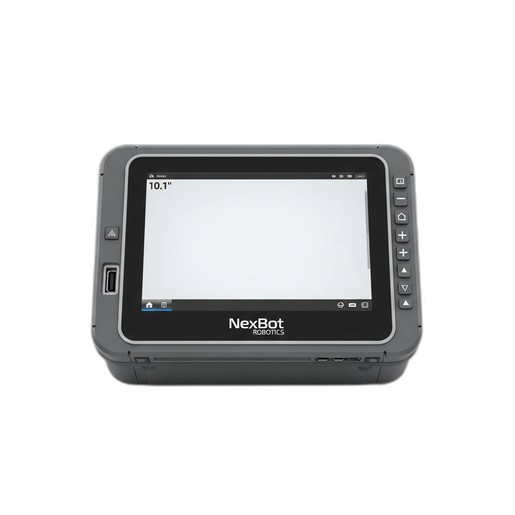
This technical bulletin outlines firmware compatibility for the NXB-GEN-222-015 Teach Pendant with NexBot robot controllers and provides official instructions for performing firmware updates.
Related Products
Tools Required
- USB flash drive
Article
Overview
The NexBot Vision 222-015 Teach Pendant (SKU: NXB-GEN-222-015) is the primary human-machine interface (HMI) for programming and operating NexBot R-100, C-10, and S-5 series robots. To ensure system stability, access to new features, and proper communication between the pendant and the robot controller, it is critical to maintain firmware compatibility. This bulletin provides the necessary information to verify and update the pendant's firmware.
Performing updates with incompatible firmware versions can lead to unpredictable behavior, loss of functionality, or communication errors. Always consult the compatibility matrix before proceeding with an update.
Firmware Compatibility Matrix
It is essential to match the teach pendant firmware version with the robot controller's system software version. Use the table below to identify the correct firmware for your system. Using a version not listed for your controller software may result in system instability.
| Robot Series | Controller Software Version | Required Pendant Firmware Version | | :--- | :--- | :--- | | R-100 (Articulated) | R-SYS 2.1.x | TP-FW 1.5.0 - 1.5.4 | | R-100 (Articulated) | R-SYS 2.2.x | TP-FW 1.6.0 - 1.6.3 | | C-10 (Collaborative) | C-SYS 3.0.x | TP-FW 2.0.0 - 2.0.5 | | C-10 (Collaborative) | C-SYS 3.1.x | TP-FW 2.1.0 - 2.1.2 | | S-5 (SCARA) | S-SYS 1.5.x | TP-FW 1.5.0 - 1.5.4 | | S-5 (SCARA) | S-SYS 1.6.x | TP-FW 1.6.0 - 1.6.3 |
Note: Firmware packages are available for download from the NexBot Robotics support portal.
Verifying Current Firmware Version
Before attempting an update, verify the firmware version currently installed on your teach pendant.
- Power on the robot controller. The teach pendant will boot up.
- From the main screen, tap the
SYSTEMorMENUicon. - Navigate to
ABOUT>VERSIONS. - Locate the entry for
Teach Pendant FirmwareorHMI Version. The version number will be displayed (e.g.,TP-FW 2.0.5). - Compare this version with the compatibility matrix above to determine if an update is required.
Firmware Update Procedure
Follow these steps carefully to update the firmware on the NXB-GEN-222-015 pendant.
Prerequisites
- Firmware File: Download the correct firmware package (
.nbffile) from the NexBot support portal for your specific controller software version. - USB Flash Drive: A USB 2.0 or 3.0 flash drive, formatted to FAT32, with at least 256 MB of free space.
- System State: The robot must be in a safe, stationary position with no active programs running.
Step-by-Step Instructions
- Prepare the USB Drive: Copy the downloaded firmware file (e.g.,
TP_FW_2.1.2.nbf) to the root directory of the FAT32-formatted USB flash drive. Do not place it inside any folders. - Connect to Pendant: Safely insert the USB flash drive into the USB-A port located on the side or back of the NXB-GEN-222-015 teach pendant.
- Enter Maintenance Mode:
- On the pendant's main screen, navigate to
SYSTEM>MAINTENANCE. - You may be prompted to enter a password. The default is
1986. - Select
Firmware Updatefrom the maintenance menu.
- Select Firmware Source: The system will display a list of available update sources. Select
USB Device. - Select Firmware File: The pendant will scan the USB drive and display a list of valid firmware files. Select the file you copied in Step 1.
- Initiate Update: A confirmation screen will appear, showing the current version and the new version to be installed.
- WARNING: Do not power off the teach pendant or the robot controller during the update process. Doing so can render the pendant inoperable.
- Press
CONFIRMorSTART UPDATEto begin the process.
- Monitor Progress: The pendant will display a progress bar. The update process typically takes 5-10 minutes. The screen may go blank momentarily, and the device will reboot automatically once the update is complete.
Post-Update Verification
After the teach pendant reboots, it is crucial to verify that the update was successful.
- Repeat the steps in the Verifying Current Firmware Version section to confirm that the new version number is displayed.
- Test basic functionality. Enable the drives and carefully jog each robot axis in Joint and World modes to ensure proper communication and control.
- Load a simple program and run it in test mode (T1) to confirm program execution is nominal.
If the pendant does not function as expected, or if the firmware version has not changed, proceed to the troubleshooting section or contact NexBot Robotics Technical Support.